
Crafting Stunning User Interfaces With Java JFrame
In the dynamic realm of Java programming, crafting engaging and intuitive user interfaces is paramount. A central player in this endeavor is the Java JFrame. This guide will walk you through the art of creating compelling graphical user interfaces (GUIs) using JFrames, accompanied by examples and in-depth explanations.
The Anatomy of a Java JFrame
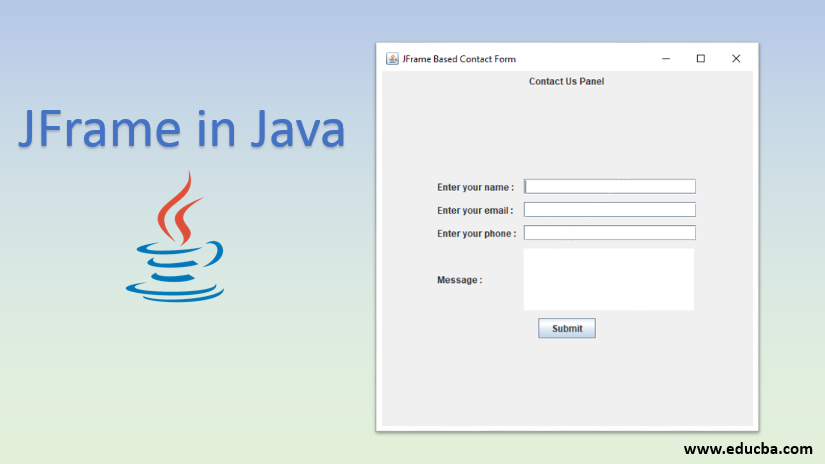
A Java JFrame is a versatile canvas that can be manipulated to accommodate various UI components, including buttons, labels, text fields, and more. It comprises several essential elements:
1. Title Bar
At the top of the JFrame, the title bar displays the window’s title, enabling users to identify the purpose of the application.
2. Content Pane
The content pane acts as a container for housing all the UI components. It provides a platform for arranging and managing the graphical elements.
3. Borders and Layout Managers
Borders enhance the aesthetics of the JFrame by providing visual separation. Layout managers dictate how UI components are positioned within the content pane, ensuring an organized and responsive layout.
Creating Your First Java JFrame
Let’s embark on a journey to create your maiden Java JFrame. Follow these steps to get started:
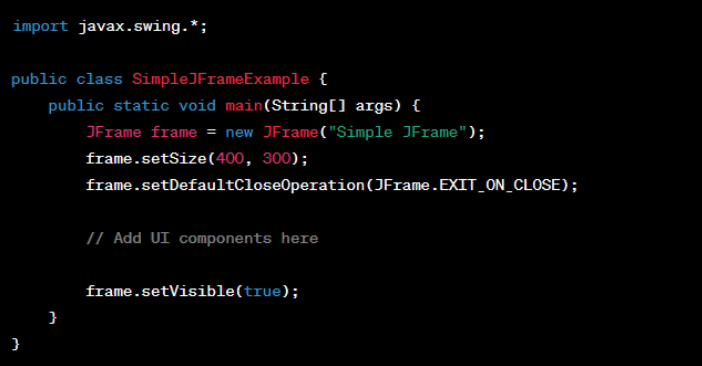
- Import Required Libraries Begin by importing the necessary libraries such as javax.swing.JFrame to access JFrame functionalities;
- Instantiate the JFrame Create an instance of the JFrame class using the JFrame constructor. Set the title, dimensions, and close operation;
- Add Components Use layout managers to add UI components to the content pane. Consider using FlowLayout, BorderLayout, or other layout options;
- Display the JFrame Finally, make your JFrame visible by setting its visibility property to true.
By carefully following these steps, you’ll unveil a basic yet functional Java GUI.
Advanced Techniques for Java JFrames
As you delve deeper into crafting user interfaces, explore these advanced techniques:
1. Event Handling
Ensure responsiveness by incorporating event handling mechanisms. Implement listeners to capture user interactions and trigger appropriate actions.
2. Custom Graphics
Leverage the java.awt.Graphics class to introduce custom graphics and visual elements into your JFrame.
3. Swing vs. AWT
Java offers both Swing and AWT libraries for GUI development. Swing provides a richer set of components and a more modern look, while AWT offers lightweight components.
Comparing Java JFrames with Other Frameworks
| Aspect | Java JFrames | JavaFX |
|---|---|---|
| Component Library | Extensive | Modern and Rich |
| Styling | Basic | CSS-based |
| Animation | Limited | Advanced |
| Platform Independence | Cross-platform | Cross-platform |
Code Snippet: Creating a Simple JFrame
Enhancing User Experience with Java JFrames
To enhance user experience, consider these strategies:
- Responsive Design: Craft interfaces that adapt seamlessly to different screen sizes, ensuring usability on various devices;
- Intuitive Navigation: Design a clear and logical flow within your interface, guiding users to their intended actions;
- Visual Consistency: Maintain a consistent color scheme, typography, and design language across all UI elements.
Alt: The creating JFrame in Java, Video
Best Practices for Optimizing Java JFrames
Creating visually appealing Java JFrames is just the beginning; optimizing them for performance and efficiency is equally crucial. Here are some best practices to elevate your GUI development:
1. Efficient Memory Management
As your GUI application grows, memory consumption can become a concern. Utilize memory-efficient coding practices, avoid memory leaks, and release resources appropriately.
2. Double-Buffering for Smooth Rendering
To prevent flickering and enhance rendering, employ double-buffering. This technique involves rendering graphics in an off-screen buffer before displaying them on the screen.
3. Thread Management
Separate the UI thread from the application logic thread. UI-related operations should occur on the UI thread to maintain responsiveness and avoid freezing the interface.
4. Minimize GUI Clutter
While a rich interface can be engaging, excessive elements can clutter the UI and overwhelm users. Prioritize essential components and maintain a clean, intuitive design.
5. Localization Support
Design your UI to be easily localized for different languages and regions. This involves using resource bundles and ensuring UI elements accommodate varying text lengths.
6. Accessibility Considerations
Ensure your GUI is accessible to users with disabilities. Use appropriate labels for UI elements, provide keyboard navigation, and adhere to accessibility guidelines.
7. Error Handling and Feedback
Implement clear error messages and feedback mechanisms to guide users when something goes wrong. This enhances the overall user experience and reduces frustration.
Conclusion
Mastering the art of creating Java JFrames empowers you to design visually captivating and user-friendly applications. By understanding the anatomy, implementing advanced techniques, and considering user experience, you can craft interfaces that leave a lasting impact.